Self-Hosted LLM Behind Pomerium
This guide shows how to run a self-hosted LLM web interface (e.g., Open WebUI) and protect it behind Pomerium. Similar to the code-server guide, this setup applies enterprise-grade access controls to a local LLM, while passing user identity information through trusted headers so the upstream application knows who's accessing it.
Why Use Open WebUI?
Open WebUI is a self-hosted interface for interacting with local or remote LLMs. Hosting it locally allows:
- Private experimentation with different LLMs
- Full control over data and configuration
- Integration of custom features like retrieval augmentation, voice, or browsing
Why Pomerium?
By placing Open WebUI behind Pomerium, you can:
- Authenticate users with your existing IdP (e.g., Google, GitHub, corporate SSO).
- Enforce policy-based access using user attributes like email domain.
- Pass identity headers (e.g.,
X-Pomerium-Claim-Email) to the upstream app, letting it personalize the experience without separate logins.
Pomerium injects trusted identity information, so Open WebUI can recognize authenticated users and skip its own password handling.
Overview
- Run Open WebUI in Docker.
- Configure Pomerium Zero to secure it.
- Access the LLM UI through a protected URL. Pomerium handles auth, passes user identity, and ensures only allowed users access the LLM.
Prerequisites
- Pomerium Zero account
- Docker and Docker Compose
- A machine capable of running your chosen LLM backend
For GPU acceleration, follow Open WebUI's CUDA instructions.
Configure Pomerium Zero
Create a Policy
Define who can access the LLM interface. For example, restrict access to your email domain:
- In the Zero Console, go to Policies → New Policy.
- Name it LLM Access.
- Add an allow condition:
Domainequalsexample.com.
This ensures only authenticated users with example.com email addresses can access the route.
Create a Route
Map an external domain to the internal Open WebUI service. For example:
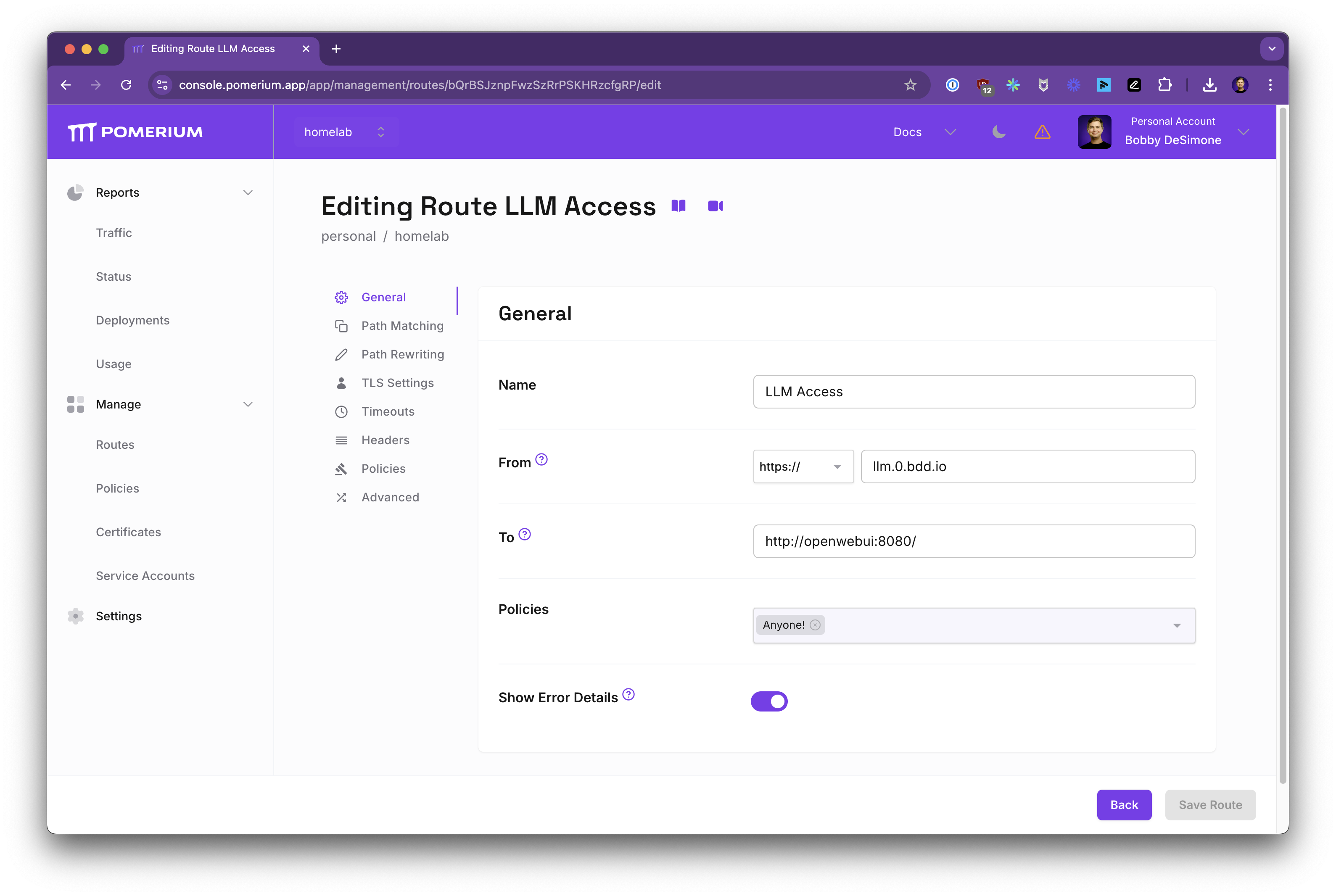
- In the Zero Console, go to Routes → New Route.
- Name:
LLM Access - From:
https://llm.your-domain.pomerium.app - To:
http://openwebui:8080 - Policies: Select LLM Access
Save the route. Now only authorized users can reach llm.your-domain.pomerium.app.
Enable Websockets
LLM UIs often use streaming responses:
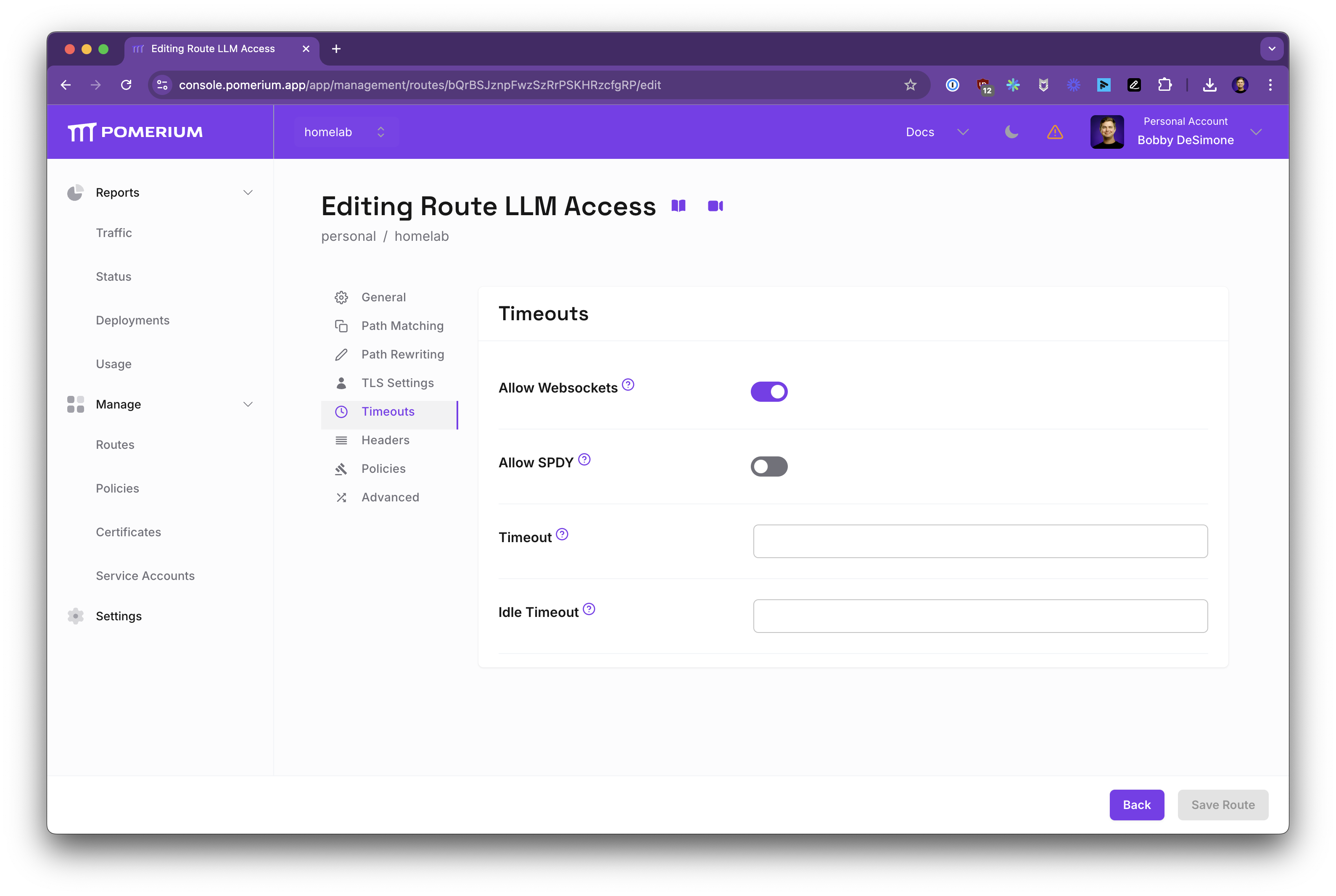
- Under Timeouts, toggle Allow Websockets to
On.
Preserve Host Header & Pass Identity
Enable these settings so Open WebUI receives the correct host header and identity claims:
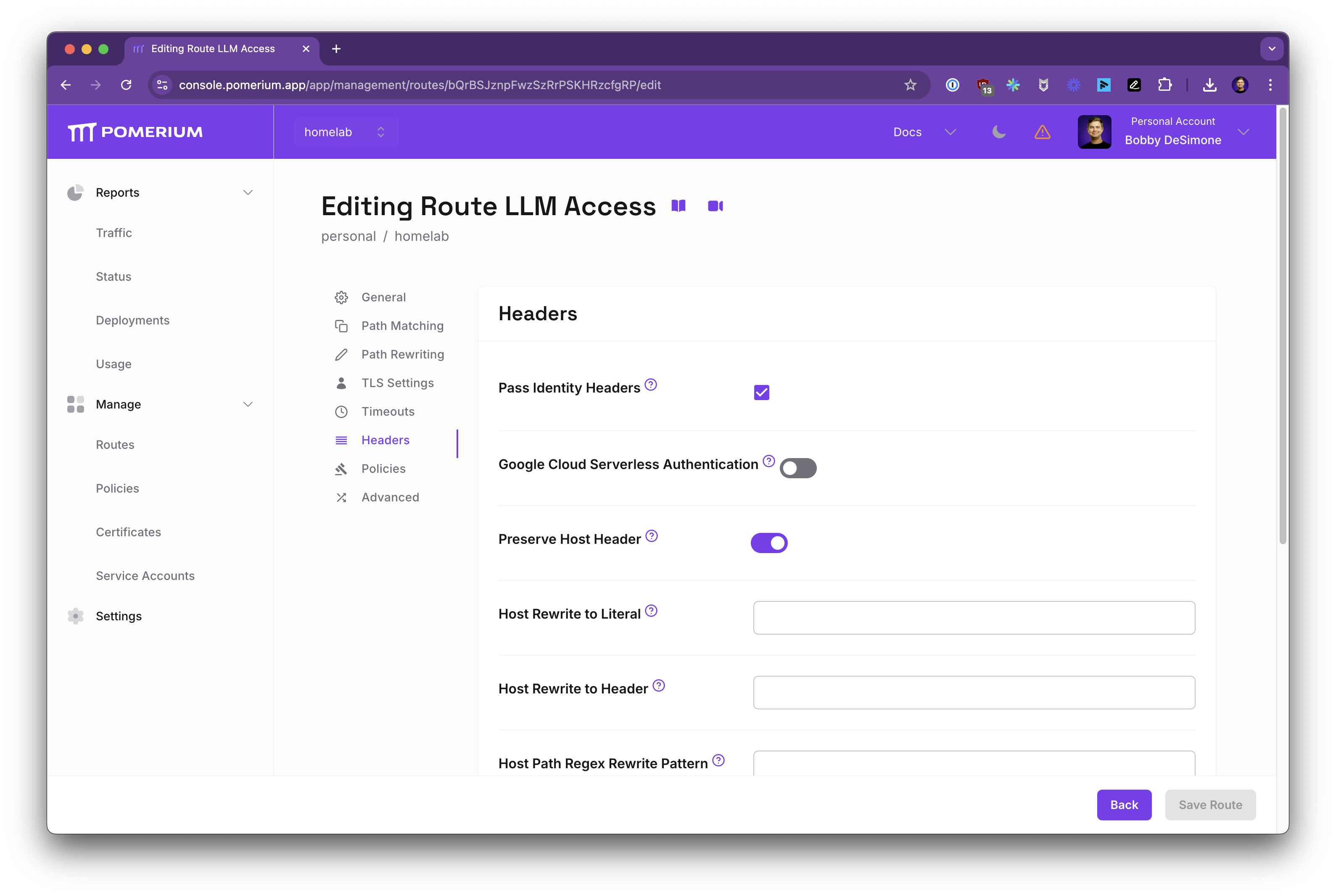
- Pass Identity Headers: On
- Preserve Host Header: On
This ensures Pomerium forwards identity info like X-Pomerium-Claim-Email. In Settings, you can define how claims map to headers:
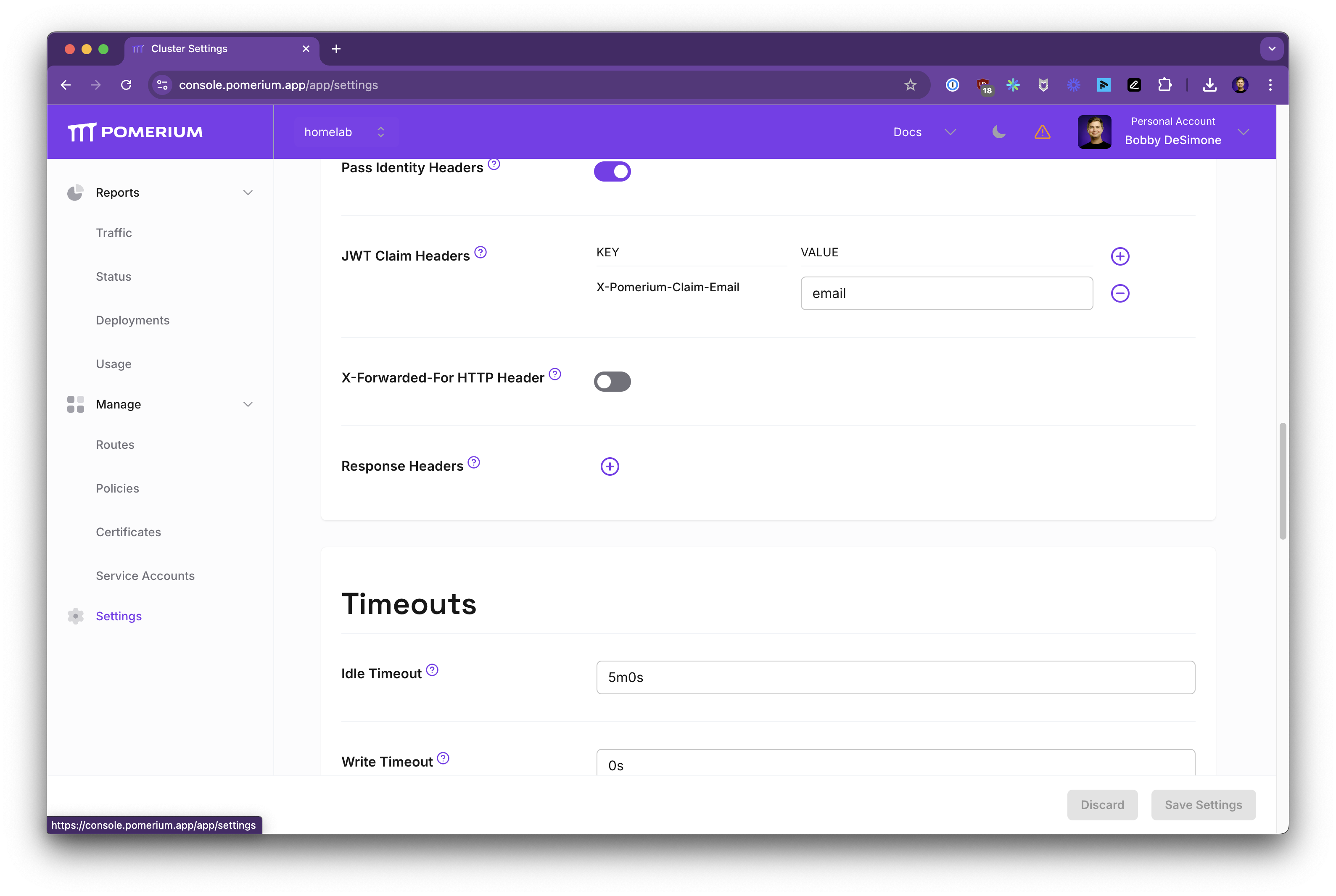
With these settings, Open WebUI trusts the identity headers and can attribute actions to the authenticated user.
Example Docker Compose
Use placeholders for secrets and adjust WEBUI_URL to your external route. If you trust Pomerium's headers, set WEBUI_AUTH=False in Open WebUI.
version: '3.9'
services:
  pomerium:
    image: pomerium/pomerium:latest
    ports:
      - 443:443
    restart: always
    environment:
      POMERIUM_ZERO_TOKEN: '<YOUR_CLUSTER_TOKEN>'
      XDG_CACHE_HOME: /var/cache
    volumes:
      - pomerium-cache:/var/cache
    networks:
      main:
        aliases:
          - authenticate.<YOUR_CLUSTER_SUBDOMAIN>.pomerium.app

  openwebui:
    image: ghcr.io/open-webui/open-webui:main
    environment:
      HOST: '0.0.0.0'
      OLLAMA_HOST: '0.0.0.0'
      WEBUI_URL: 'https://llm.your-domain.pomerium.app'
      WEBUI_AUTH_TRUSTED_EMAIL_HEADER: 'X-Pomerium-Claim-Email'
      WEBUI_AUTH: 'False'
    ports:
      - 3000:8080
    volumes:
      - open-webui-data:/app/backend/data
    restart: always
    networks:
      main: {}

networks:
  main:

volumes:
  pomerium-cache:
  open-webui-data:
Replace <YOUR_CLUSTER_TOKEN> and YOUR_CLUSTER_SUBDOMAIN. For GPU support, see Open WebUI docs.
Run and Access
docker compose up -d
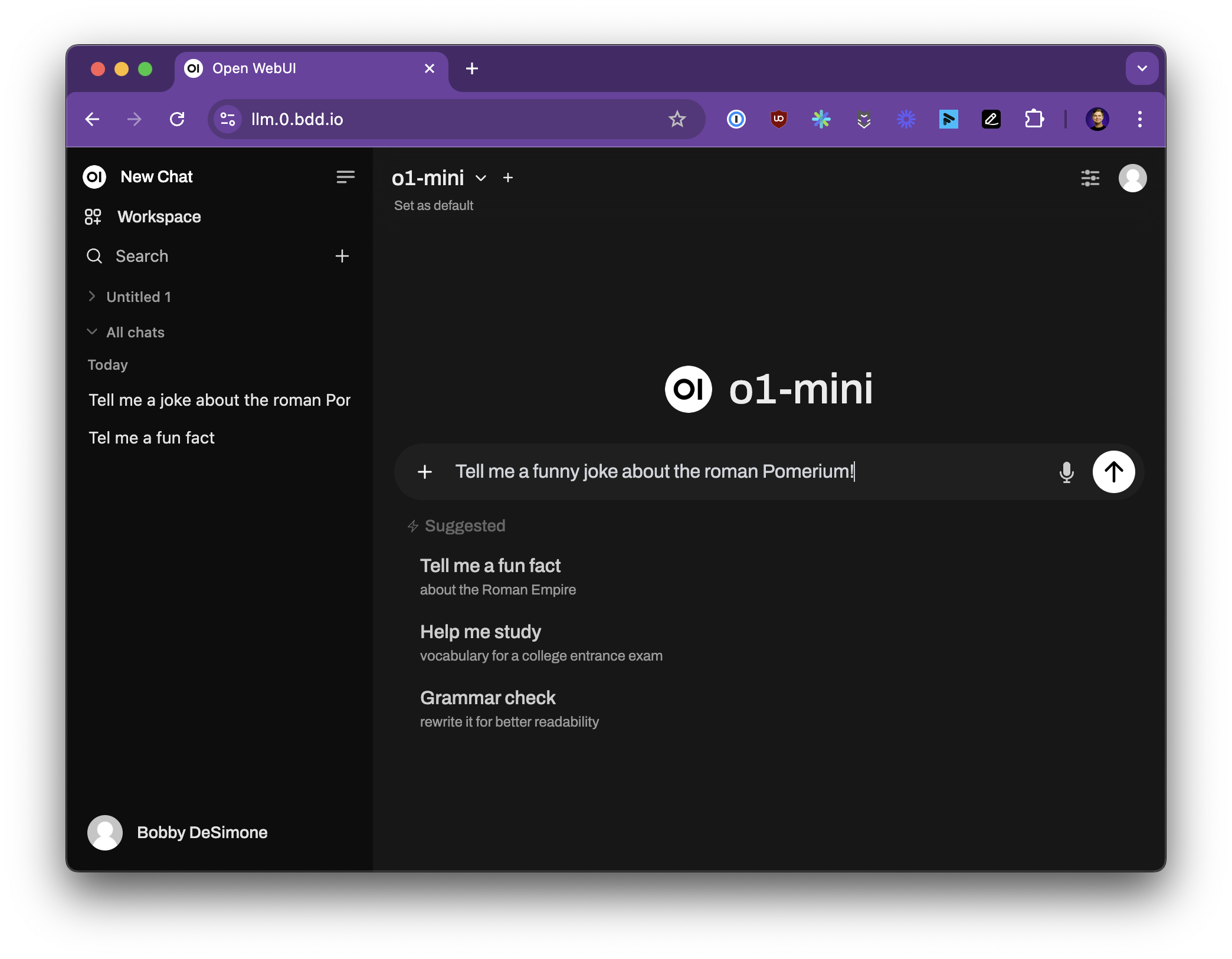
Visit https://llm.your-domain.pomerium.app. After authenticating via your IdP, Pomerium routes you to Open WebUI with identity headers included.
Test the LLM
- Load a model, prompt it, and interact.
- Your identity is passed through; Open WebUI sees your user email. No extra passwords needed.
- The entire session is protected behind Pomerium's authentication and authorization.
Example of a Secured UI
Next Steps
- Refine policies: Add group-based rules or restrict certain endpoints.
- Integrate different backends: Adjust
OLLAMA_BASE_URLorOPENAI_API_KEY. - Add more routes behind Pomerium to scale your secure environment.
You've successfully secured a self-hosted LLM WebUI using Pomerium, with identity-aware access control and automatic user recognition upstream.